Multiple Windows Shortcuts to Designer Studio
Create multiple windows shortcuts to start Designer Studio in different environments with different versions.
To be able to have multiple windows of Designer Studio open for different Studio versions or environments you can use the following values for a Windows shortcut.
Full installer
The full installer of WEBCON BPS installs the Designer Studio under C:Program Files. The values for the shortcut to the full version of Designer Studio are:
- Target:
"C:\Program Files\WEBCON\WEBCON BPS Designer Studio\WEBCON Designer Studio.exe" -protocol "webcon://https:/XXXXXX/¶meters=" _develop - Start in:
"C:\Program Files\WEBCON\WEBCON BPS Designer Studio"
Portal installer
The Designer Studio downloaded through the portal gets installed in the user profile. Using the placeholder %LocalAppdata% has the advantage of not having the username hardcoded in the shortcut. The attributes for the shortcut are:
- Target:
"%LocalAppdata%\DesignerStudio\WEBCON Designer Studio.exe" -protocol "webcon://https://XXXXXX/¶meters=" _develop - Start in:
"%LocalAppdata%\DesignerStudio"
Just substitute the XXXXXX with your portal’s address and copy this in the path field in the properties of your shortcut. Don’t forget the quotes if there is any space in the path.
Installation of multiple versions
If you want to install multiple versions of the Designer Studio, just rename the folder in your LocalAppdata folder before a new install. Then turn the path to the corresponding version for each shortcut. E.g.:
"%LocalAppdata%\DesignerStudio2026.1.2.91\WEBCON Designer Studio.exe" -protocol "webcon://https://XXXXXX/¶meters=" _develop
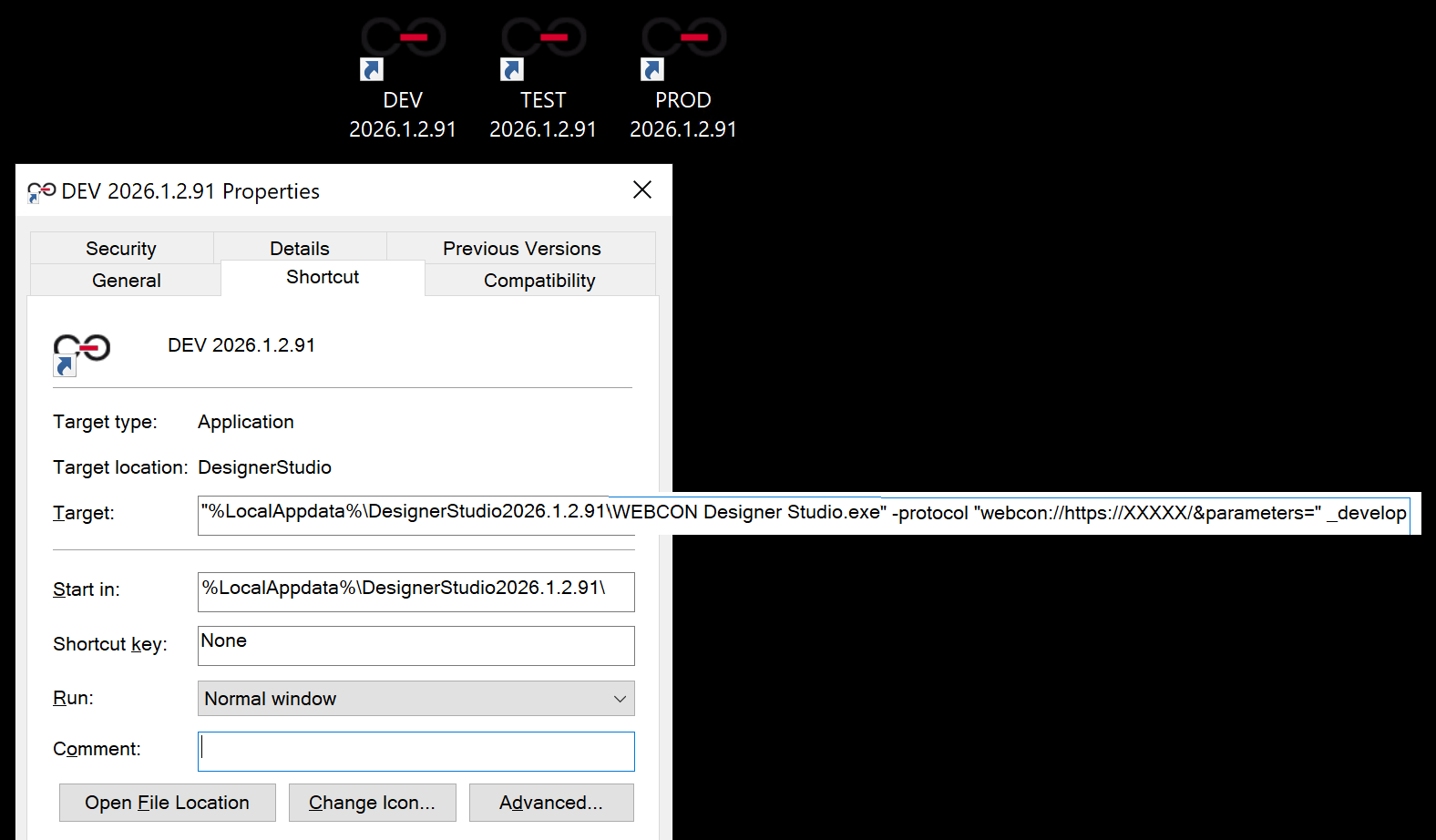
Credits to Daniel for most of this information in his blogpost: https://daniels-notes.de/posts/2022/open-designer-studio-in-a-specifc-version
Comments
Comments will be added here later.