Powershell via Rest Api Endpoints with Support for Return of Parameters
How to use "PowerShell Universal" (PSU) as a solution to return an object after an invoke of a PowerShell script.ö
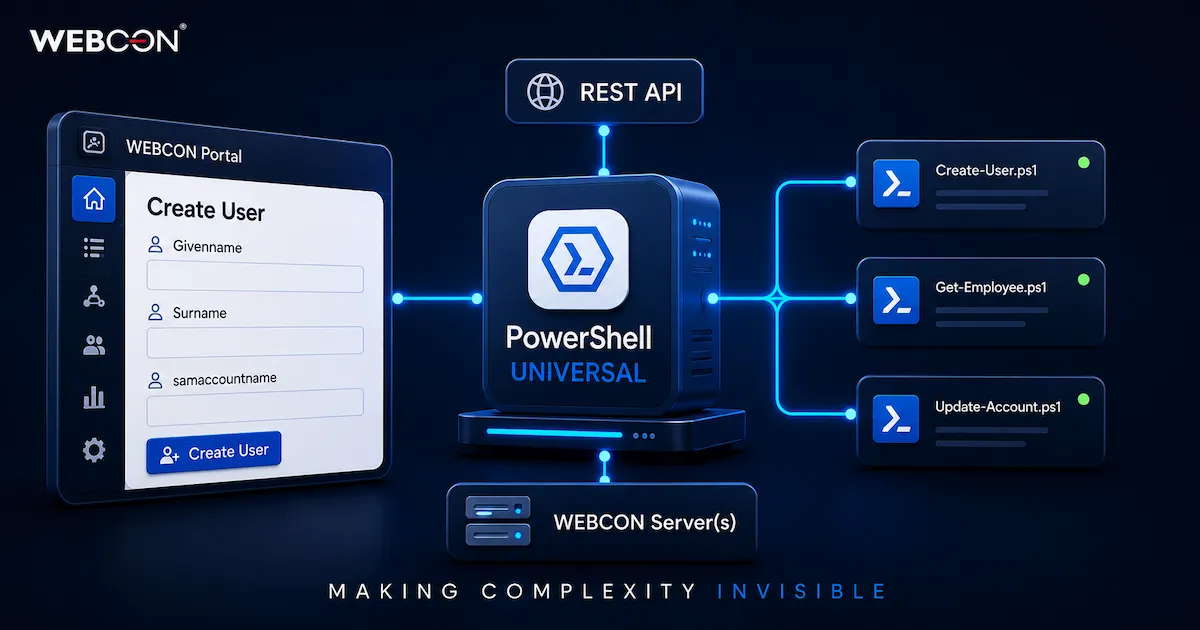
If one needs input and/or output parameters with invoke of PowerShell scripts one will run in a deadlock because there is no support for such parameters. Check this user voice for more details. That’s why this article describes a workaround using the great solution “PowerShell Universal” (PSU):
Homepage: PowerShell Universal | PowerShell Universal
Pricing: Pricing | PowerShell Universal (Per Server $499,99 containing 1 year of Updates and Support)
One of the features enables one to centralize all PowerShell scripts in this plattform and to create REST API endpoints for individual scripts. As WEBCON supports input and output parameters in the action “Invoke REST Web service” one can use this to call PowerShell scripts. The free version of PSU is all one needs to implement everything that is described in this article. Because there is no support for security and authentication configuration it is necessary to buy a PSU server license for productional use.
A nice tutorial playlist can be found on YouTube here. The first four videos describe all steps it needs to get a great overview and all for the setup of PSU. Don’t forget to allow in the local firewall incoming request to the TCP port (default port is 5000) from your WEBCON server(s) as source. Otherwise WEBCON will never get a successfull connection to PSU.
This article describes all steps to create a small running demo that gets two summands and returns their sum with basic validation, error/exception handling and a running sceleton for new use cases without running in all deadlocks, as I have been in the beginnings with PSU.
Creating a new REST API endpoint in PowerShell Universal
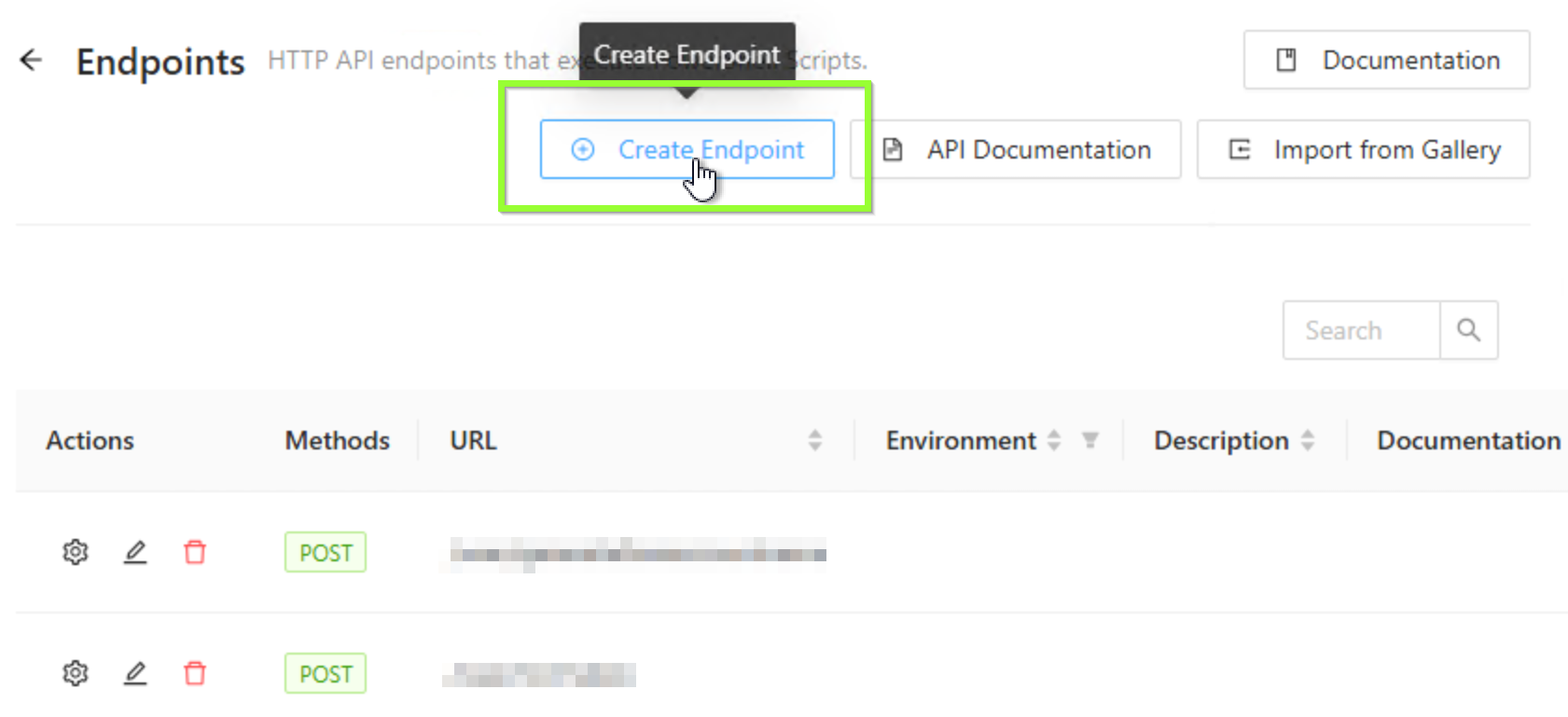
Create Endpoint
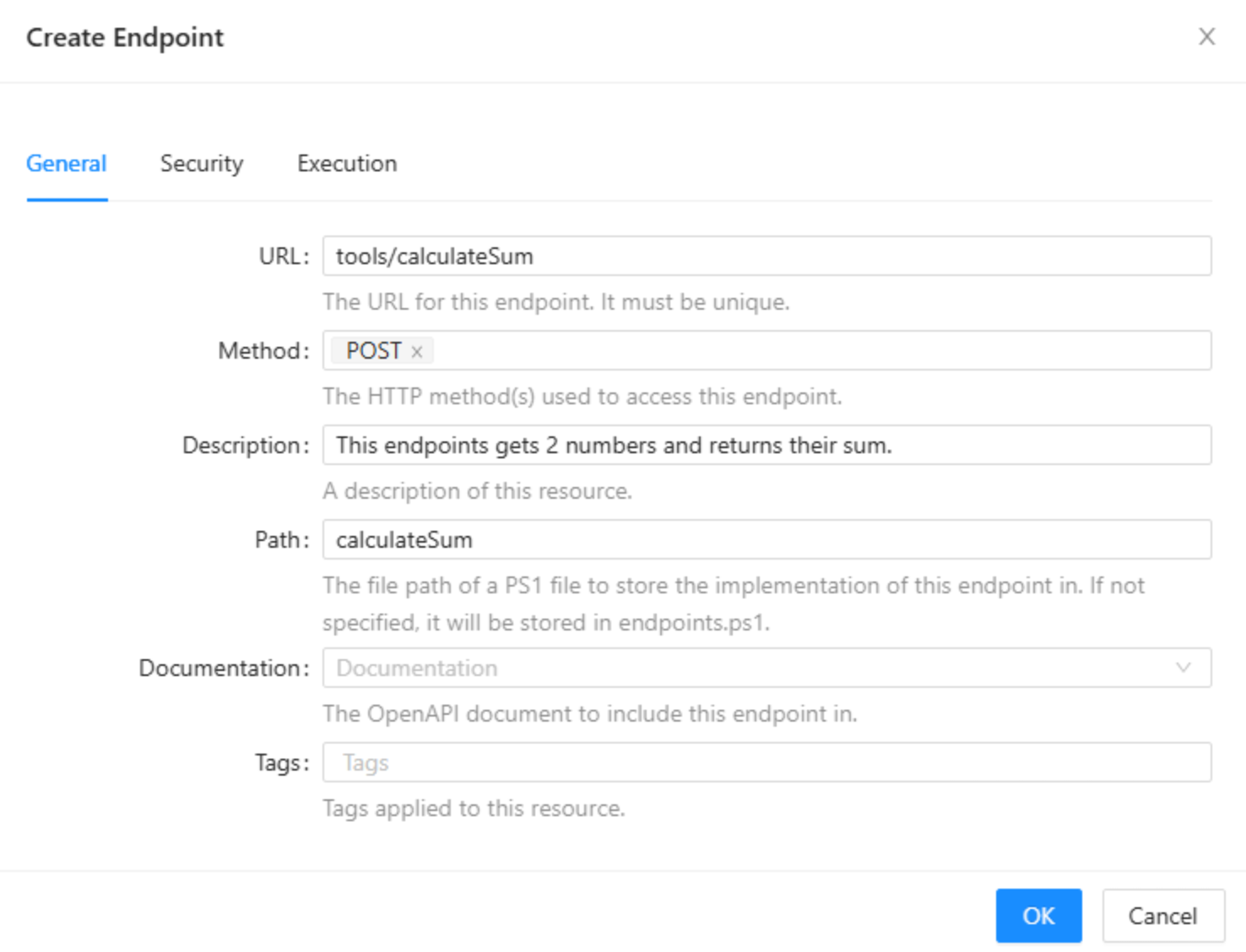
Enter the URLfor the endpoint, choose the correct method POST and set some other fields to create the endpont, click on the OK button:
PowerShell Script
Now you can enter your PowerShell code and don’t forget after all changes by clicking the small save button on the upper right:
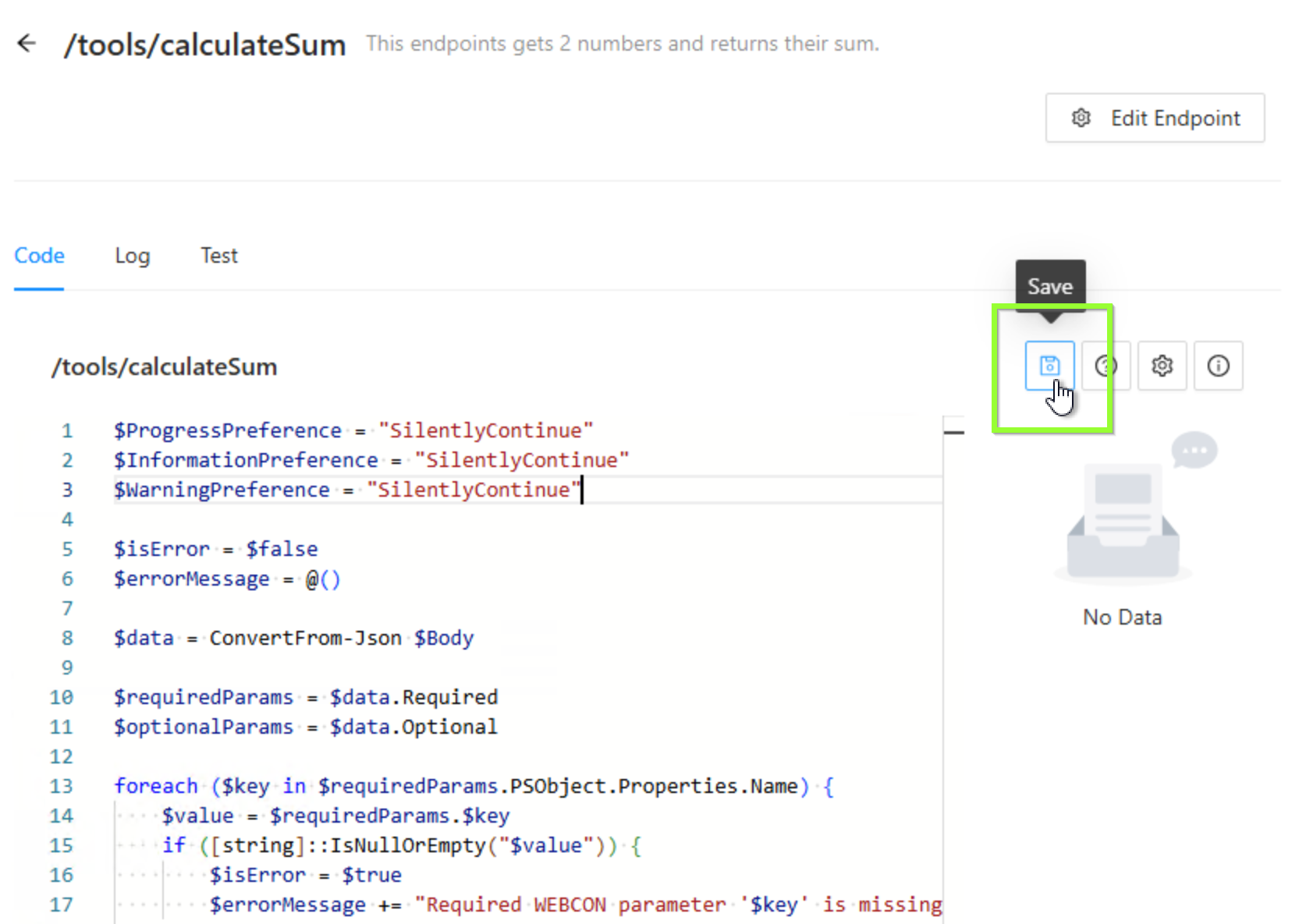
The example code receives two integer parameters and returns their sum. First we have to get out the $Body out of the WEBCON endpoint invoke:
$data = ConvertFrom-Json $BodyThe JSON body set in the configuration of the invoke REST web service action in WEBCON will be explained later and looks like this. There are two required parameters for the summand1 and summand2 and one optional parameter summand3. To illustrate validation error the form field “Summand2” will not be marked as required in the filed matrix later on for demo purpose:
{ "required": { "summand1": #{2658}#, "summand2": #{AUTP_Value:7}# }, "optional": { "summand3": #{AUTP_Value:5}# }}Next this two input parameter objects are assigned to variables for required and for optional parameters of the input form fields:
$requiredParams = $data.Required$optionalParams = $data.OptionalNext all required parameters of the object get iterated, the value is set to $value variable and a server validation is done to check if the value is null or empty to return an error back to WEBCON. If the value is given the variablee is created dynamically:
foreach ($key in $requiredParams.PSObject.Properties.Name) { $value = $requiredParams.$key if ([string]::IsNullOrEmpty("$value")) { $isError = $true $errorMessage += "Required WEBCON parameter '$key' is missing or empty." } else { #Create variable for required parameter Set-Variable -Name $key -Value $value -Scope Script }}Same is done if the object of the optional parameters isn’t empty but without the validation of the attributes values because they are only optional:
if ($optionalParams) { foreach ($key in $optionalParams.PSObject.Properties.Name) { $value = $optionalParams.$key Set-Variable -Name $key -Value $value -Scope Script }}If everything is fine the main code can be run. It is enclosed by an if statement checking there is no validation error that prevents to calculate the code, here the sum:
if (-not $isError) {
$summand1 = [int]$summand1 $summand2 = [int]$summand2
#Add both summands $sum = $summand1 + $summand2
if ($summand3) { $sum += [int]$summand3 $log = "Addition of the integers '$summand1' and '$summand2' and '$summand3' gives sum '$sum'." } else { $log = "Addition of the integers '$summand1' and '$summand2' gives sum '$sum'." }}Finally the return object can be build. A great exchange with Daniel Krüger brought me to this object structure. First an object result containing all necessary attributes for further process in WEBCON and second two additional attributes for the error/exception handling. PowerShell Universal always returns the returned value as array. That’s why the JSON string gets explicitely created instead of only returning $result. An array can only get mapped to a WEBCON item list and this is not what one wants because the returned parameters need to get mapped to “normal” form fields. The errorMessage value contains a PowerShell map that needs an item list in the mapping configuration of the response. This is shown later in the WEBCON configuration section:
$result = [PSCustomObject]@{ result = [PSCustomObject]@{ log = $log sum = $sum } isError = $isError errorMessage = $errorMessage}$json = $result | ConvertTo-Json -Depth 10 -Compressreturn $jsonThe whole PowerShell script is this:
$ProgressPreference = "SilentlyContinue"$InformationPreference = "SilentlyContinue"$WarningPreference = "SilentlyContinue"
$isError = $false$errorMessage = @()
$data = ConvertFrom-Json $Body
$requiredParams = $data.Required$optionalParams = $data.Optional
foreach ($key in $requiredParams.PSObject.Properties.Name) { $value = $requiredParams.$key if ([string]::IsNullOrEmpty("$value")) { $isError = $true $errorMessage += "Required WEBCON parameter '$key' is missing or empty." } else { #Create variable for required parameter Set-Variable -Name $key -Value $value -Scope Script }}
if ($optionalParams) { foreach ($key in $optionalParams.PSObject.Properties.Name) { $value = $optionalParams.$key Set-Variable -Name $key -Value $value -Scope Script }}
if (-not $isError) {
$summand1 = [int]$summand1 $summand2 = [int]$summand2
#Add both summands $sum = $summand1 + $summand2
if ($summand3) { $sum += [int]$summand3 $log = "Addition of the integers '$summand1' and '$summand2' and '$summand3' gives sum '$sum'." } else { $log = "Addition of the integers '$summand1' and '$summand2' gives sum '$sum'." }}
$result = [PSCustomObject]@{ result = [PSCustomObject]@{ log = $log sum = $sum } isError = $isError errorMessage = $errorMessage}
$json = $result | ConvertTo-Json -Depth 10 -Compressreturn $jsonThe WEBCON part
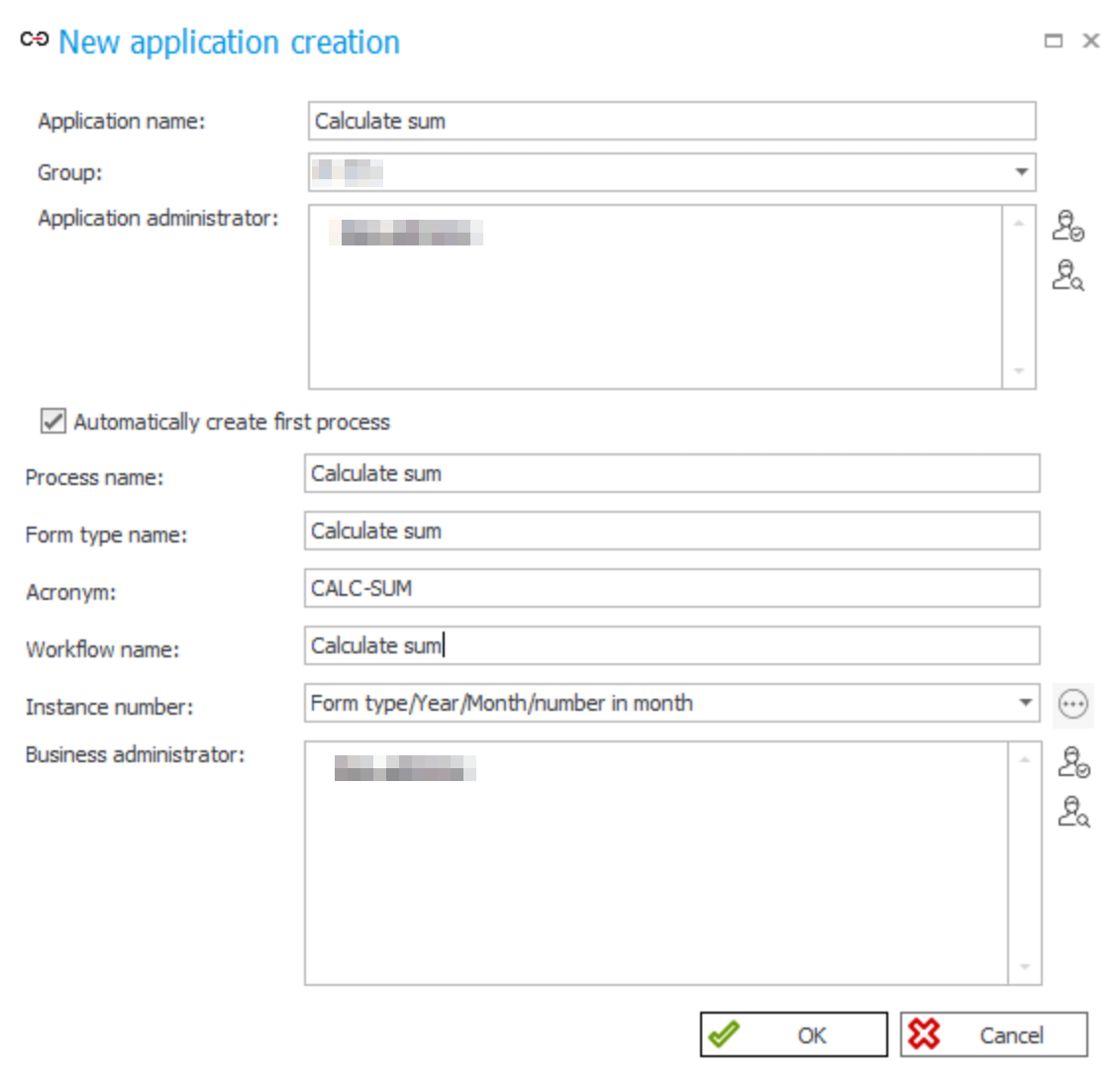
Create new app
Create a new app with a process and all stuff named “Calculate sum”:
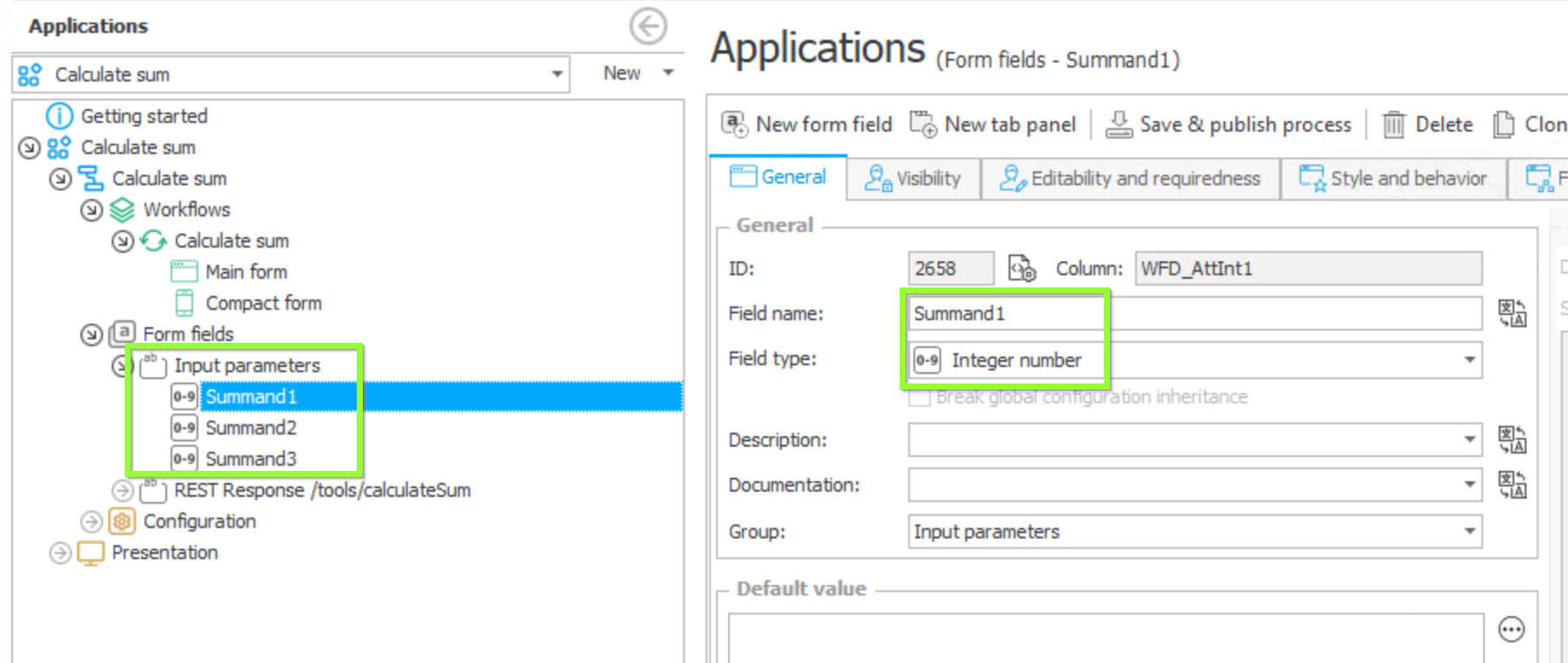
Create form fields
Create three integer form fiels for the three summands:
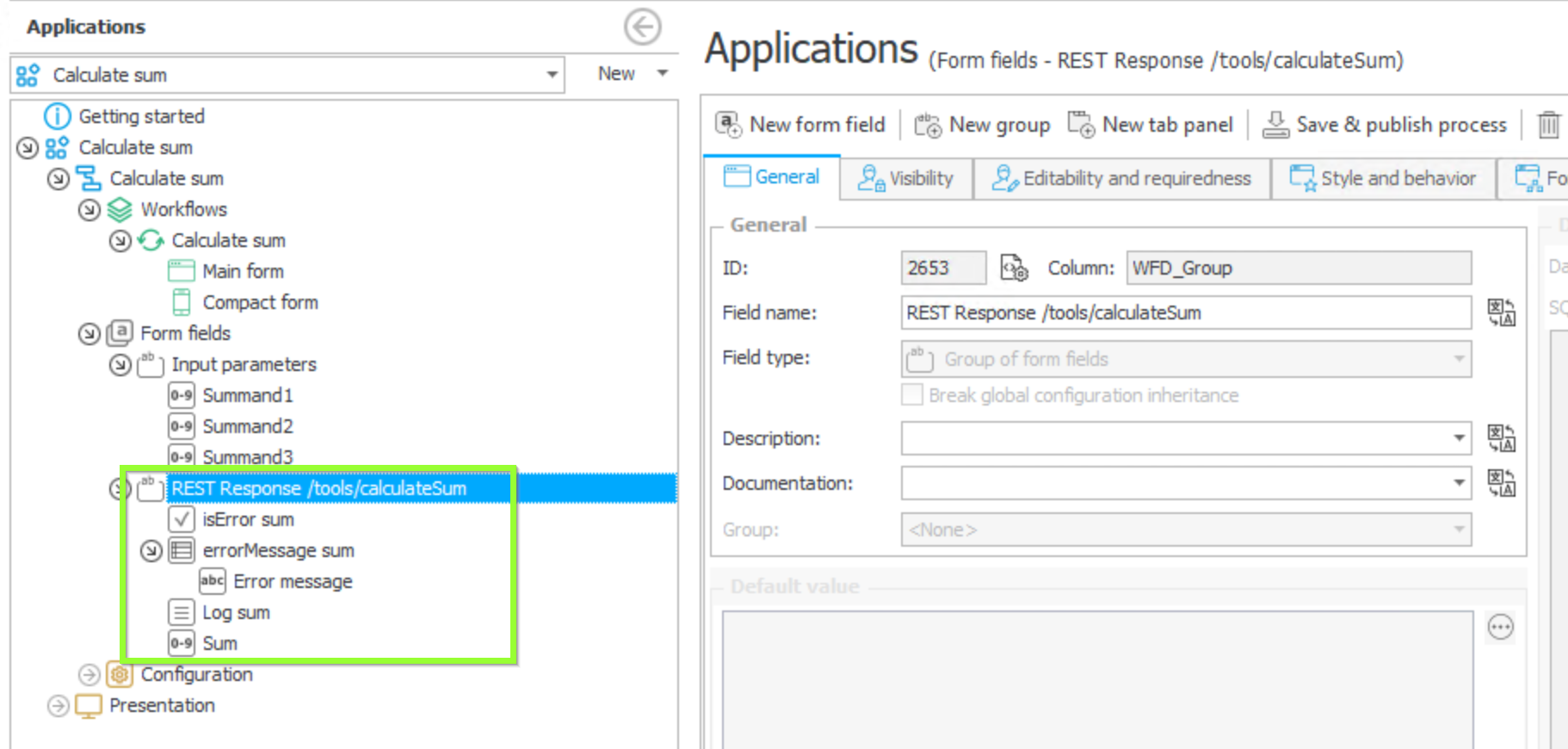
Form group for REST response
Create a group for the REST response of our endpoint /tools/calculateSum with:
- a checkbox form field to hold the value of isError
- an item list form field to hold the errorMessages collection with one column “Error message” for the messages
- a multiline text form field to hold the log
- an integer form field to hold the sum
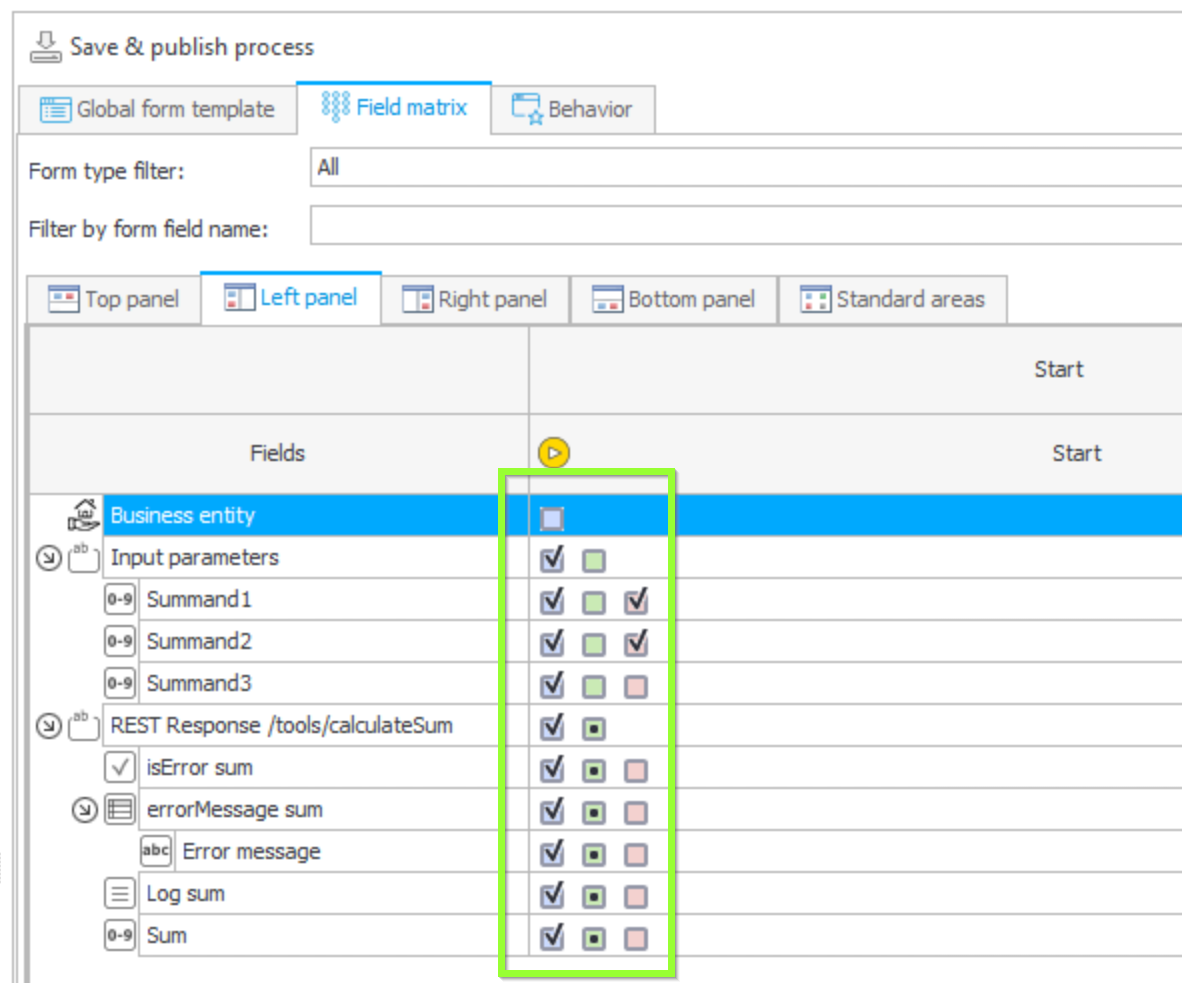
Field matrix
Then configure the field matrix. The two first summands will be marked as required normally but for this article the field “Summand2” won’t be marked as required to demonstrate the error handling of optional empty parameters later:
Create automation
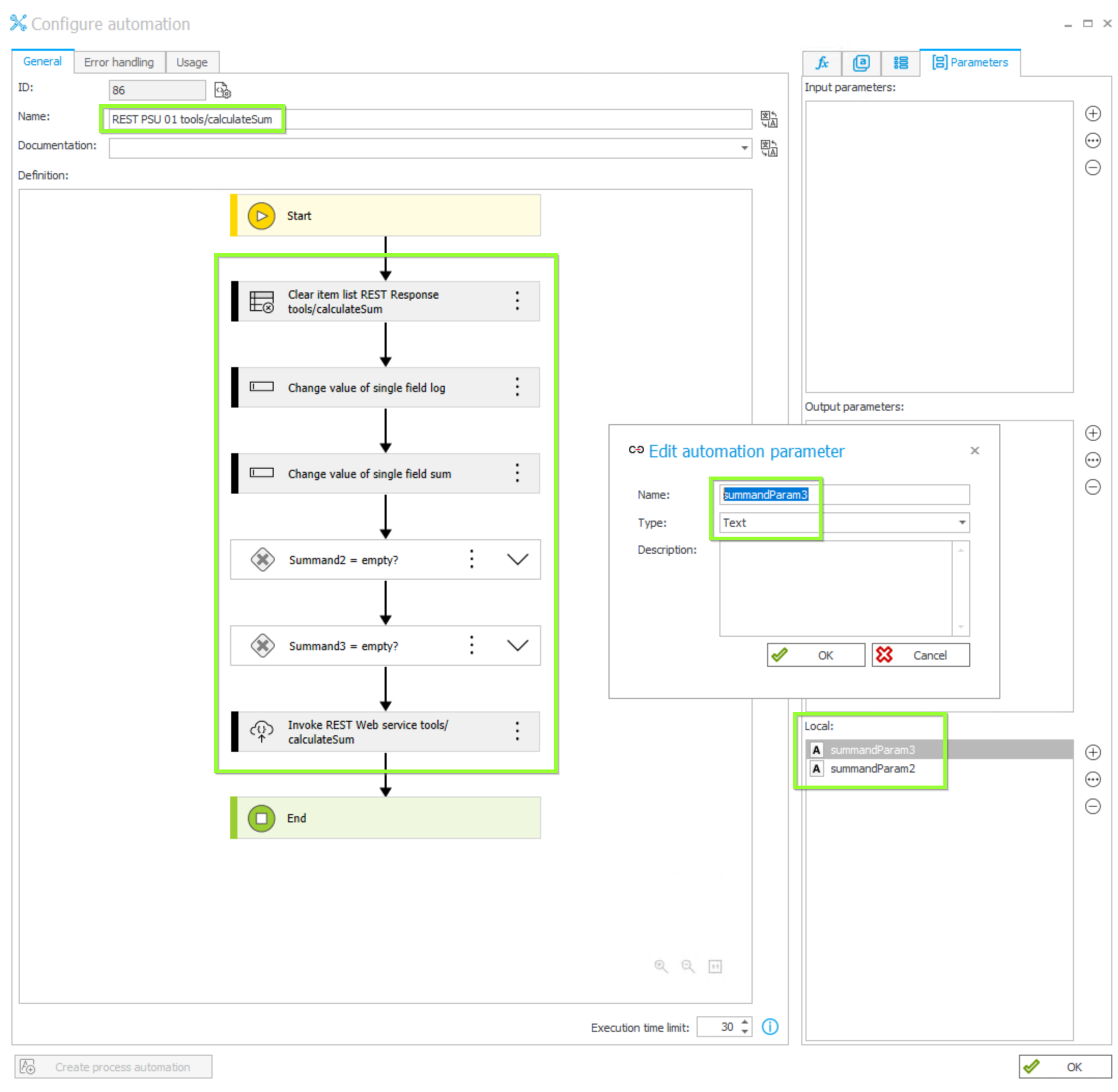
Now create a new automation in the Configuration of the process and call it e.g. “REST PSU 01 tools/calculateSum”. Create two local parameters in the configuration of the automation summandParam2 and summandParam3. The summandParam2 is only needed to show how optional form fields must get treated to prevent a Bad Request (400) response invoking the endpoint if the parameter is required in PSU. This step is not necessary for form fields that are marked as required in the field matrix normally:
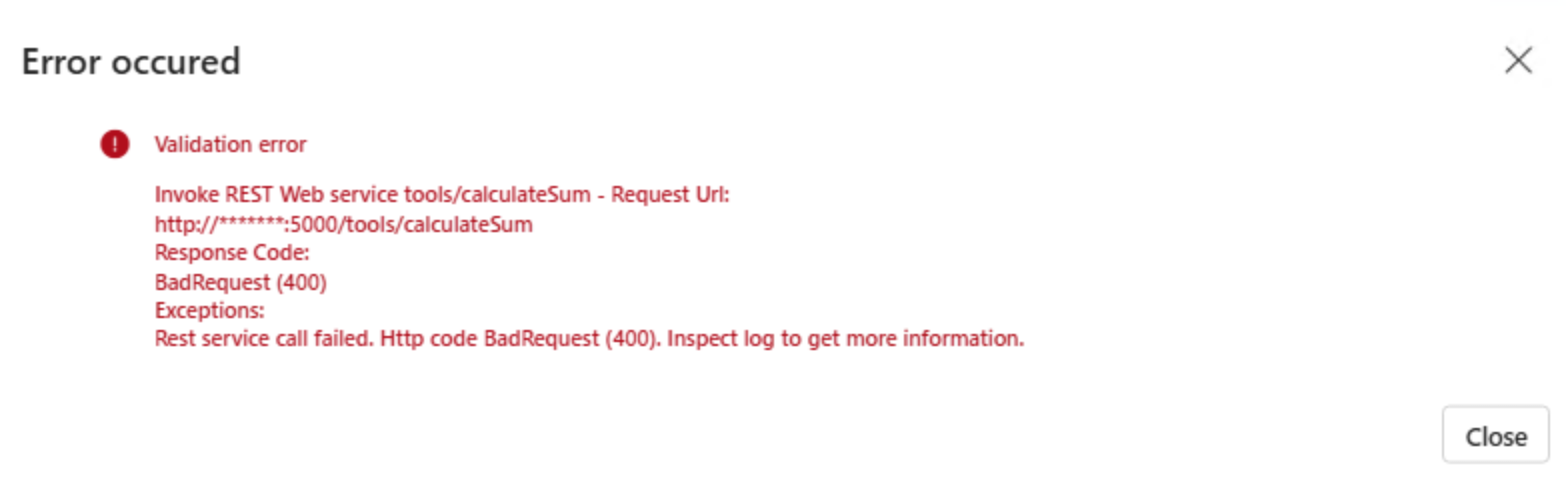
BadRequest (400) error message returns this because of invalid syntax:
Then add those actions to the automation:
- Clear item list to clear the item list holding the error messages
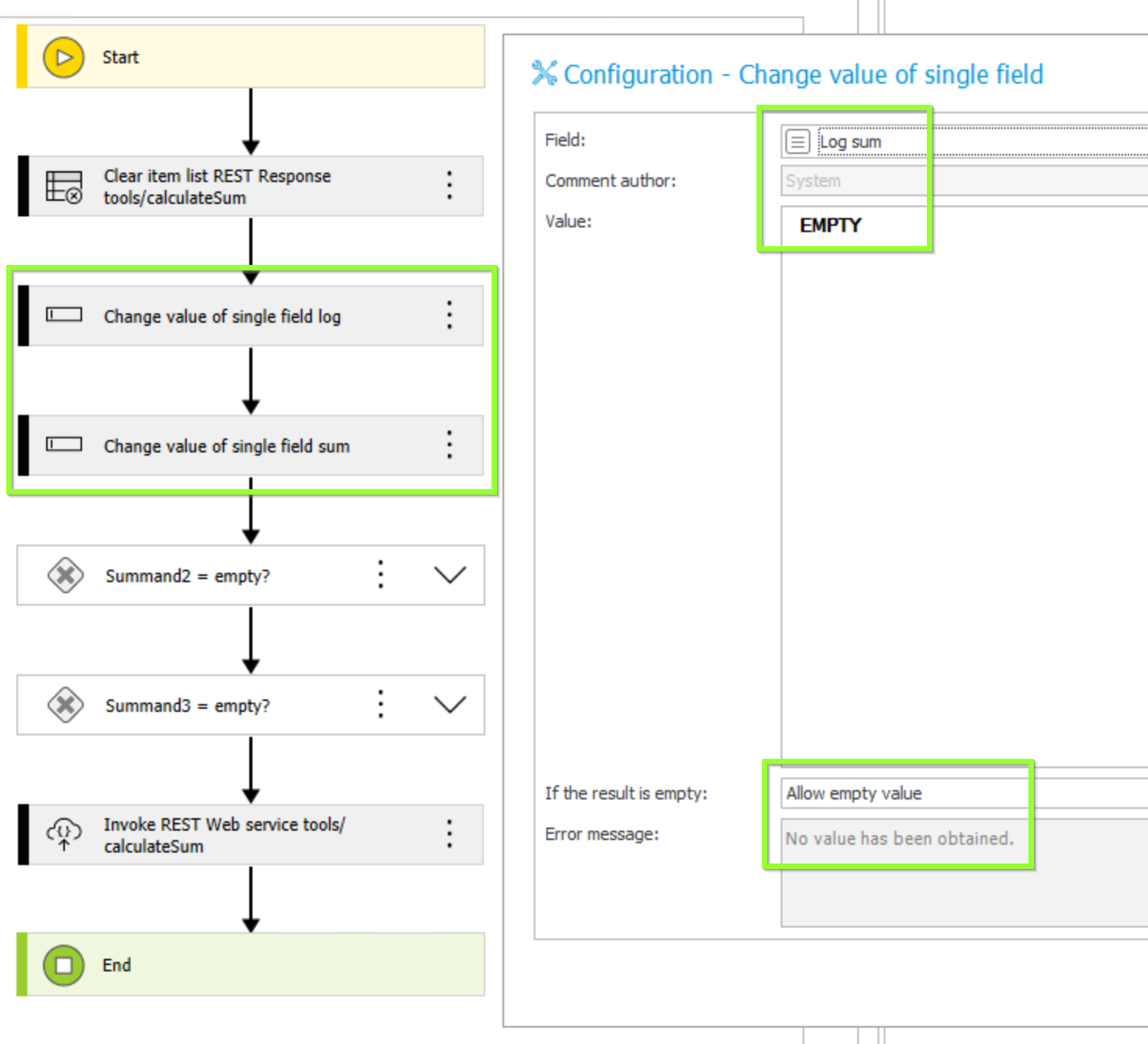
- Set the log and the sum form fields to empty
- Fields not being marked as required can be empty and need to be treated in this case to be set to “null” instead of nothing. Here the “Summand1” and “Summand2” can be marked as required in the field matrix as required and this way their value cannot be empty. For demo purpose of error handling we don’t mark field “Summand2” as required and need to check if its value is empty or not. Otherwise invoking the REST action would return a Bad Request (400) because of bad syntax. This is because WEBCON sets nothing in the JSON body instead of setting null. A user voice to improve this can be found here.
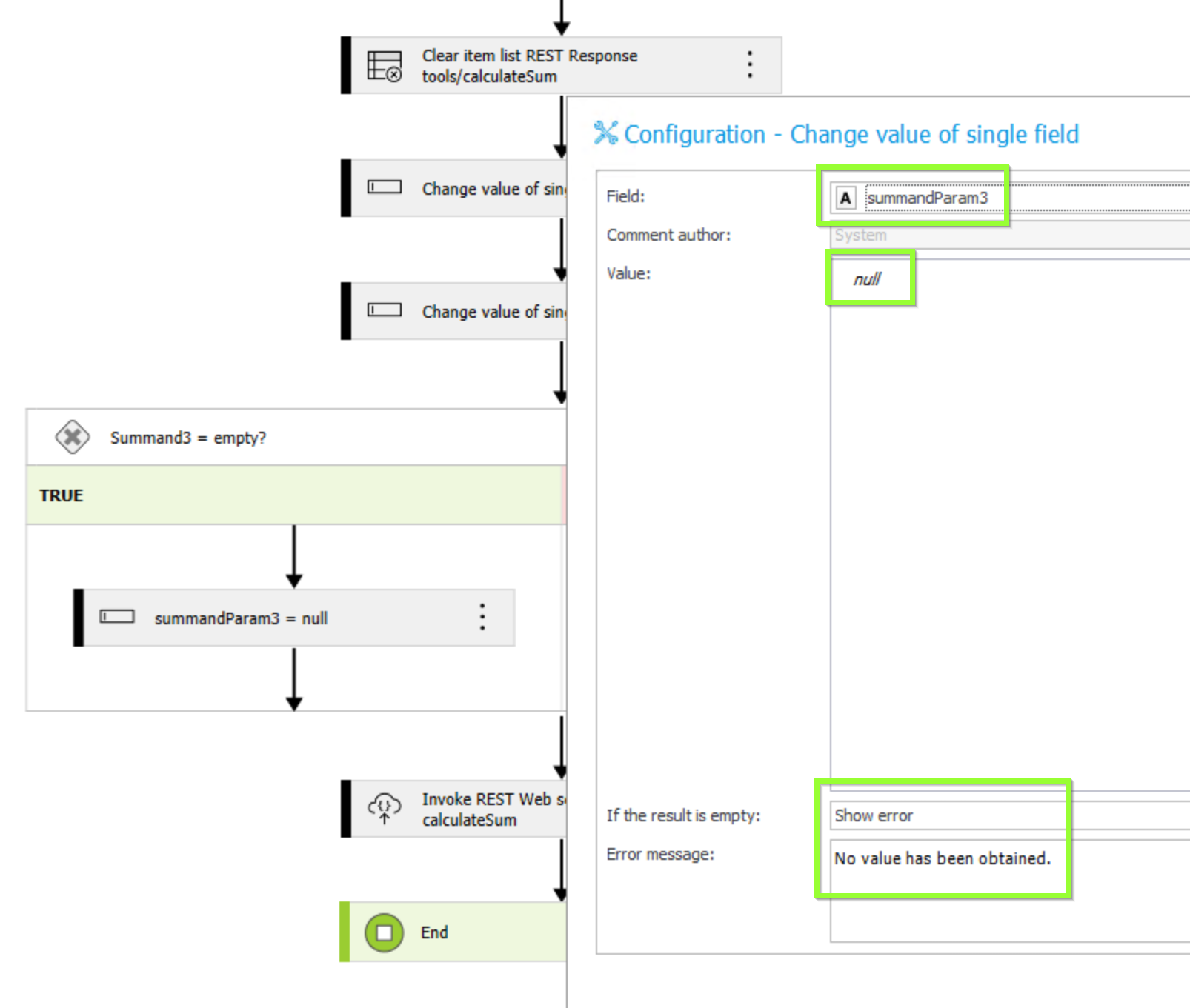
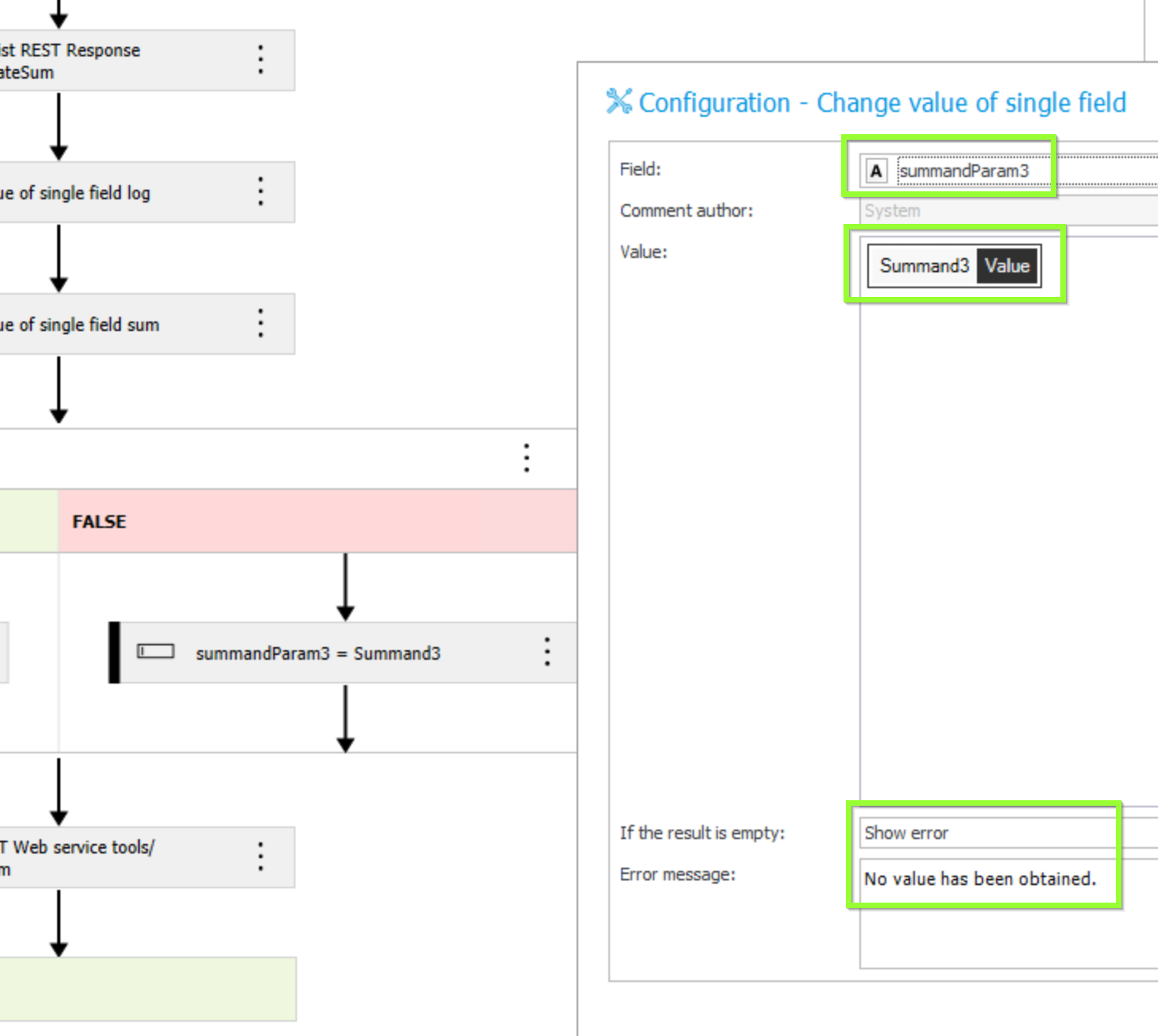
- Check if “Summand2” and “Summand3” are empty and set the local paramaters of the automation to null if empty or to the respective form field value.
- Invoke REST Web service
The details to all those steps are:
Clear item list:
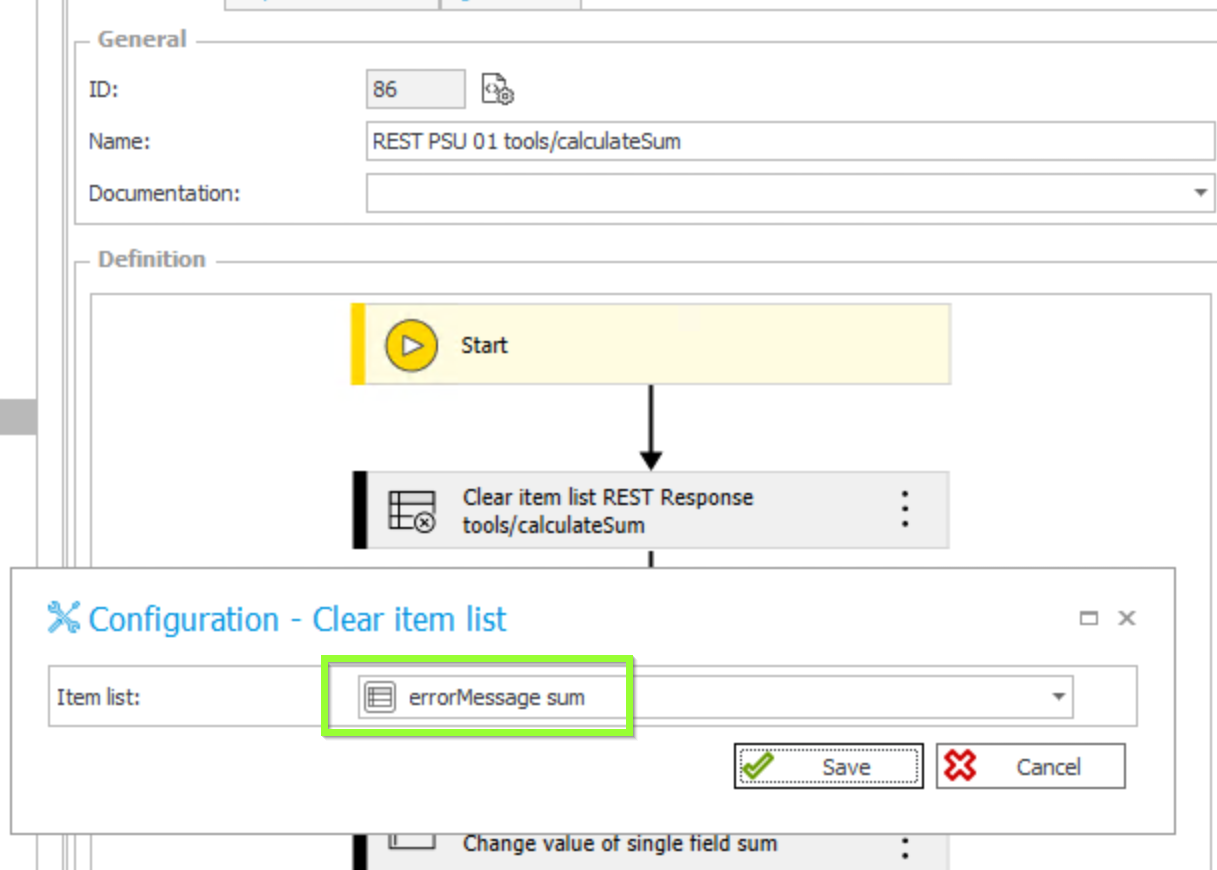
Set form fields log and sum to empty:
Handling of optional fields
Check if Summand2 (only for demo purpose of error handling) and optional Summand3 are empty and set the local parameters summandParam2 and summandParam3 to null or to the respective value:
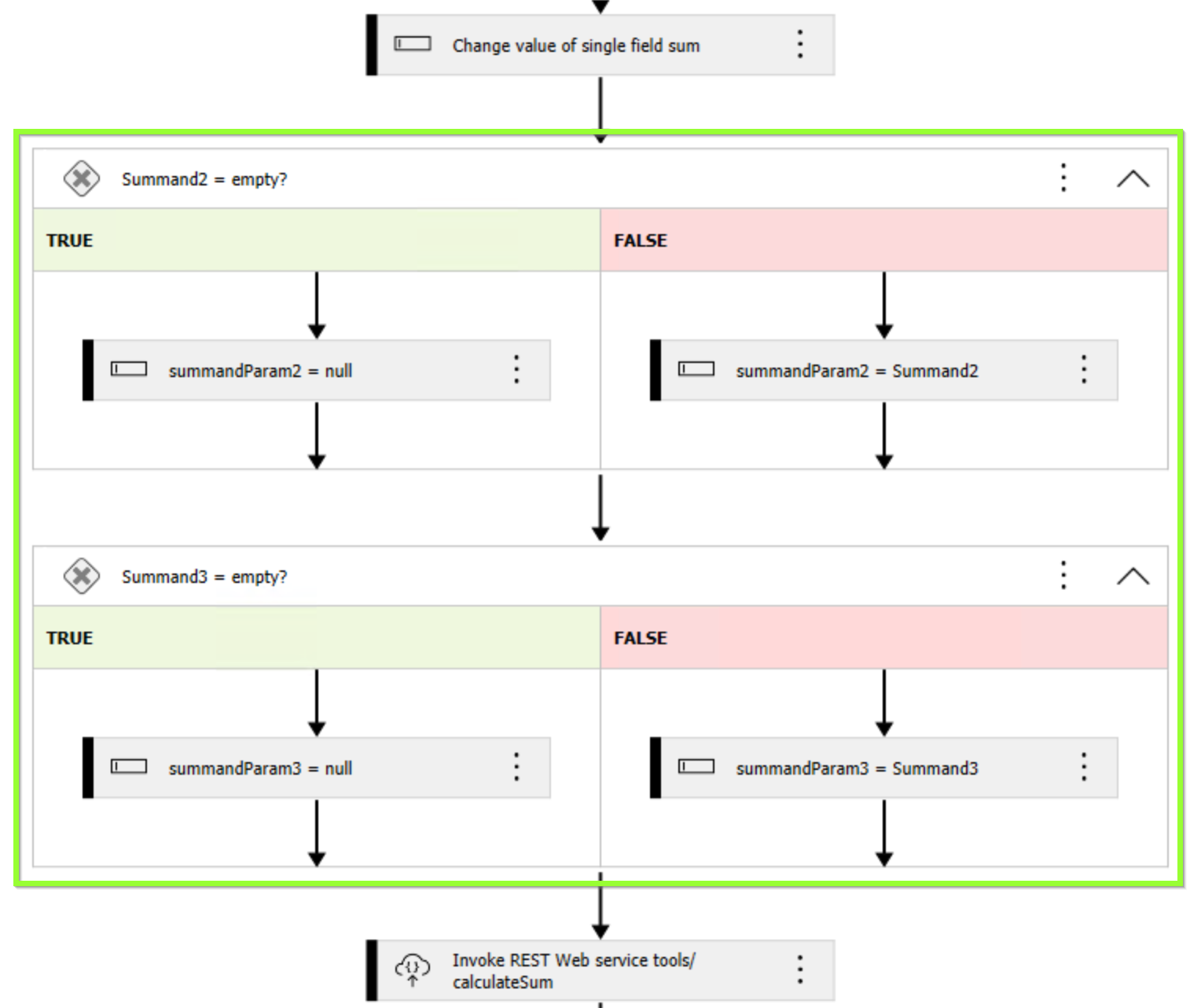
Condition:
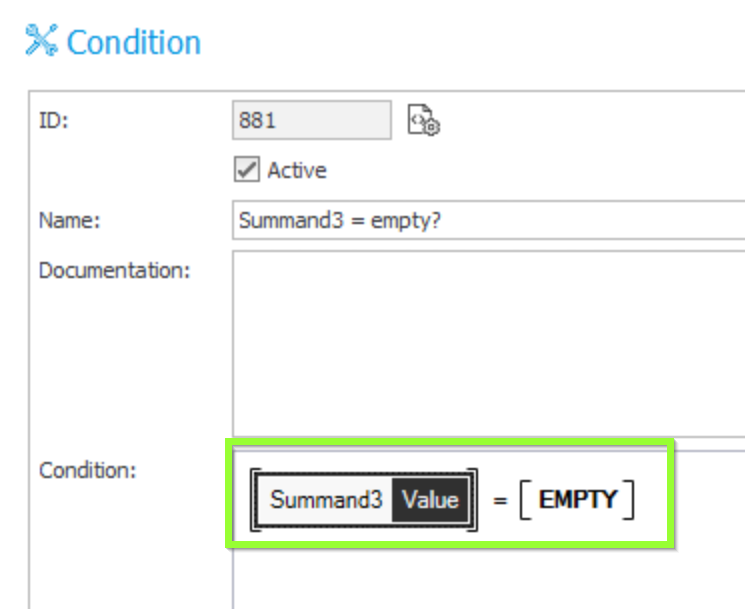
Case True:
Case False:
Configuration of the invoke REST web service:
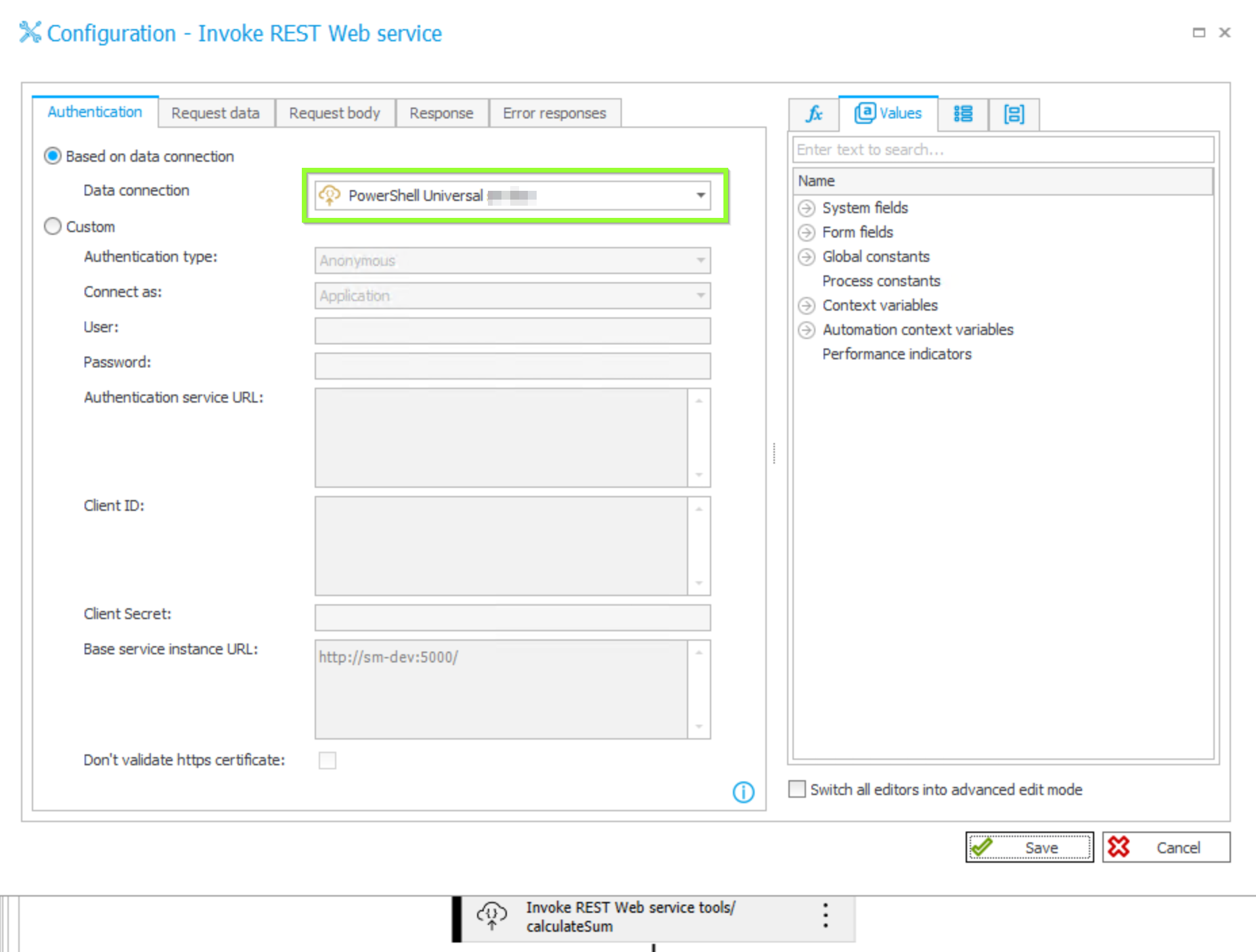
Authentication tab:
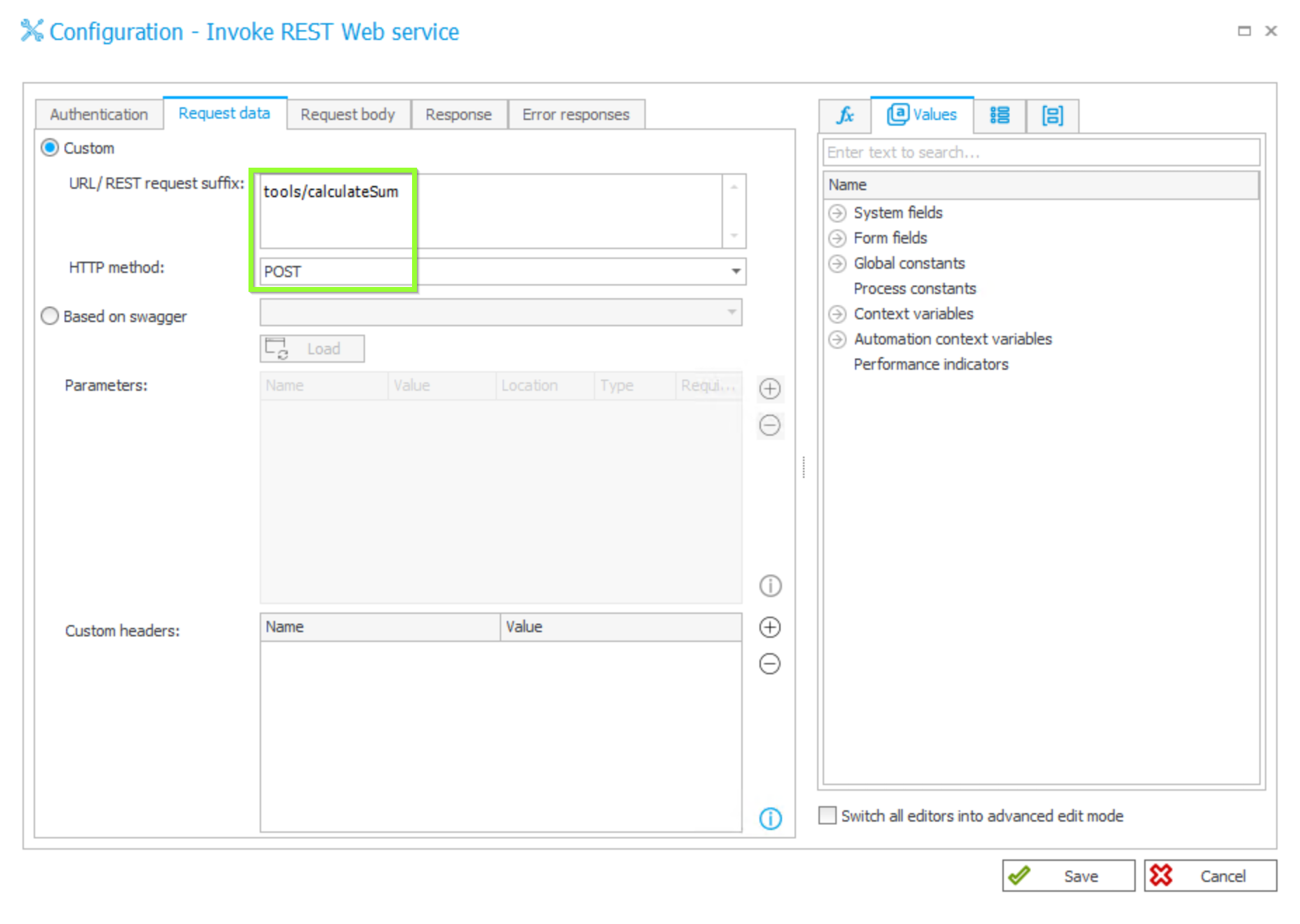
Request data tab:
Request body tab:
The Body type is “JSON” and the JSON part value is as follows. In this case one could directely use the form field “Summand2” being normally marked as required instead of the local parameter “summandParam2”. But to demonstrate also the way for optional fields that can have empty values where PSU requires this as parameter the needed workaround via local automation parameters is used here:
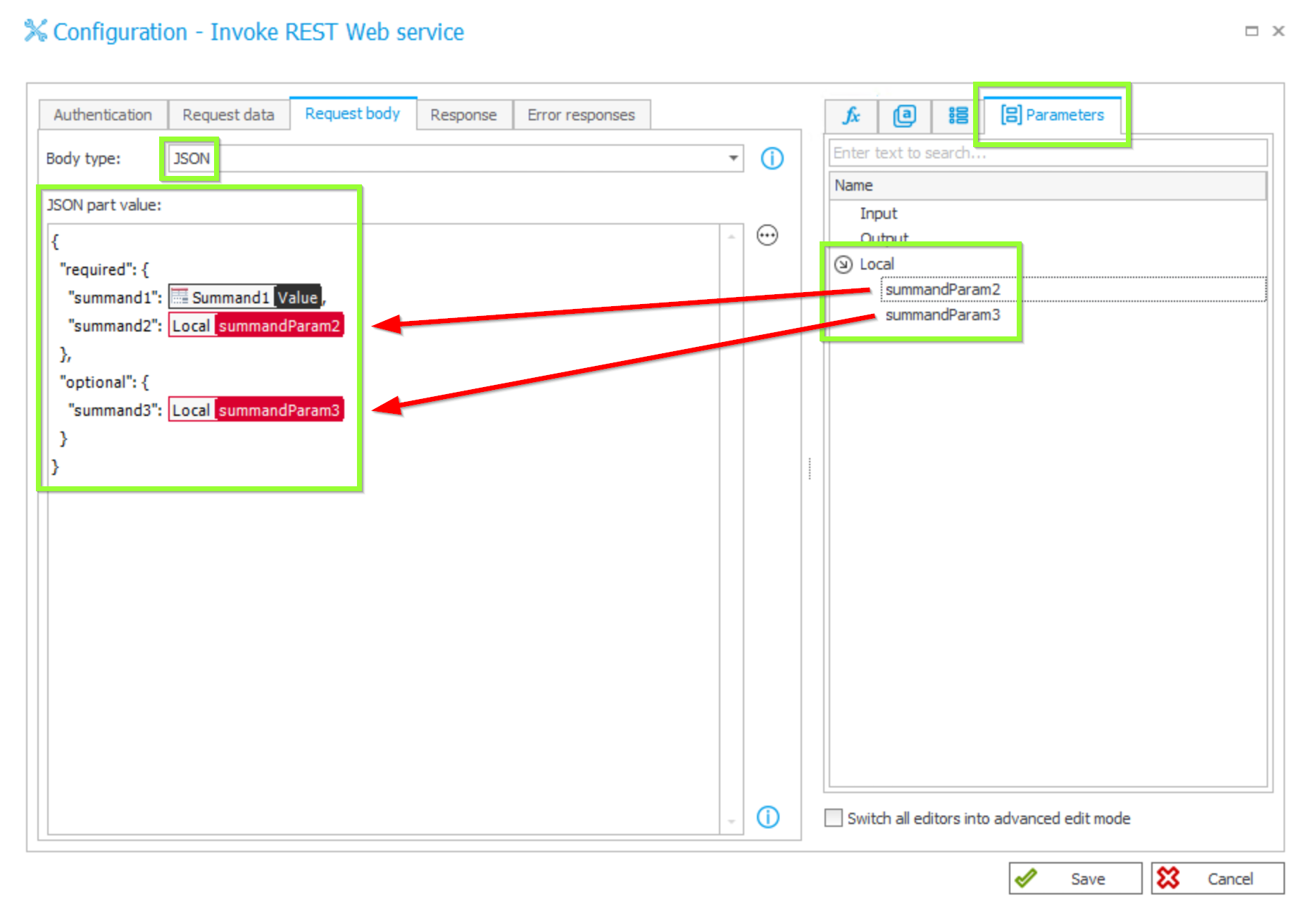
{ "required": { "summand1": #{2658}#, "summand2": #{AUTP_Value:7}# }, "optional": { "summand3": #{AUTP_Value:5}# }}Response tab:
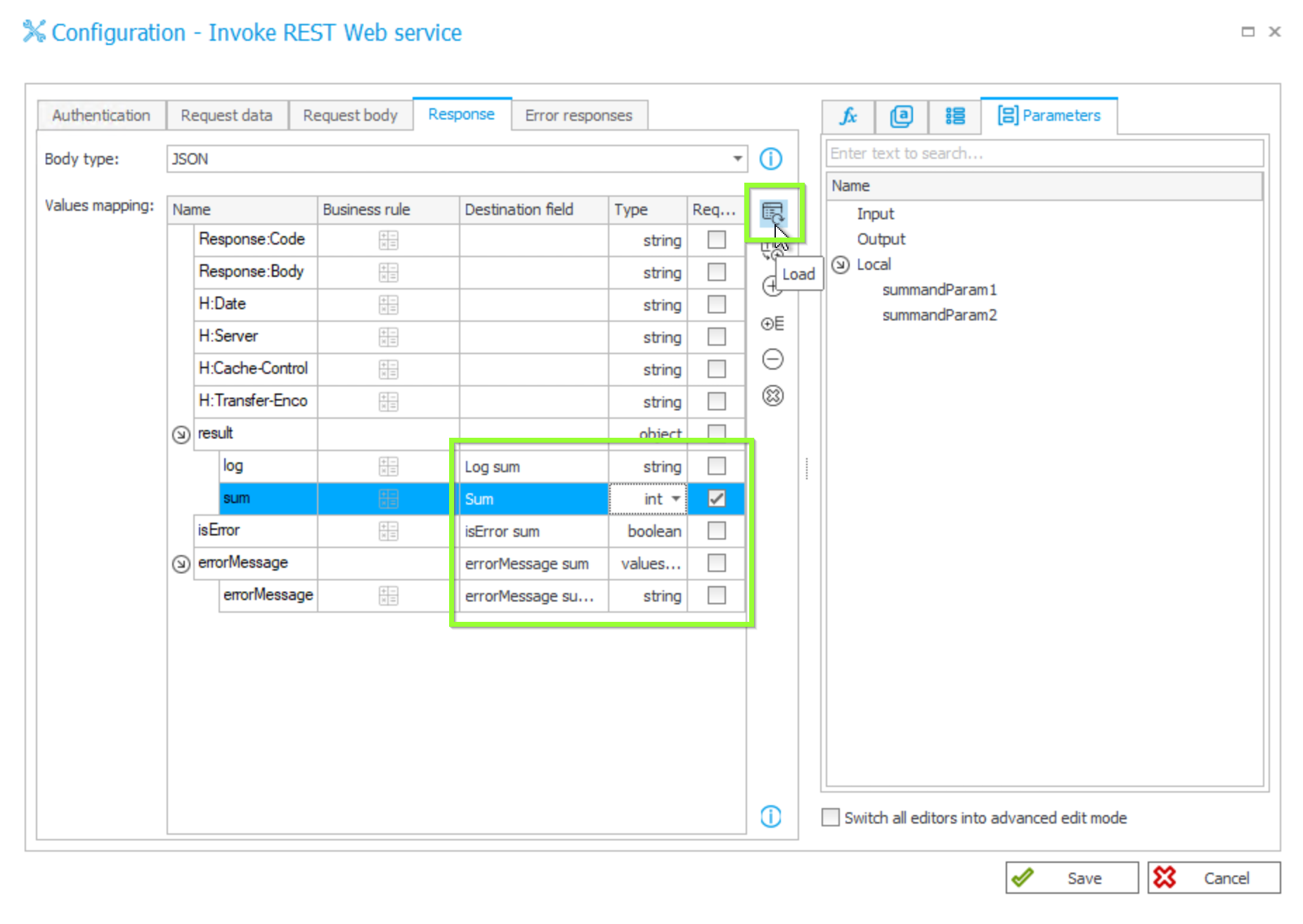
Set “JSON” as Body type. If the endpoint is already set up correctly as described above one can click on the load button to invoke the endpoint and to set the structure in the value mapping. Now do the mapping as follows:
Workflow
The final step is to configure the workflow in the Workflow Designer. The Start button has a default path “Calculate” in Wizzard Mode assigned to the current user leading to the start button again and the automation is added:
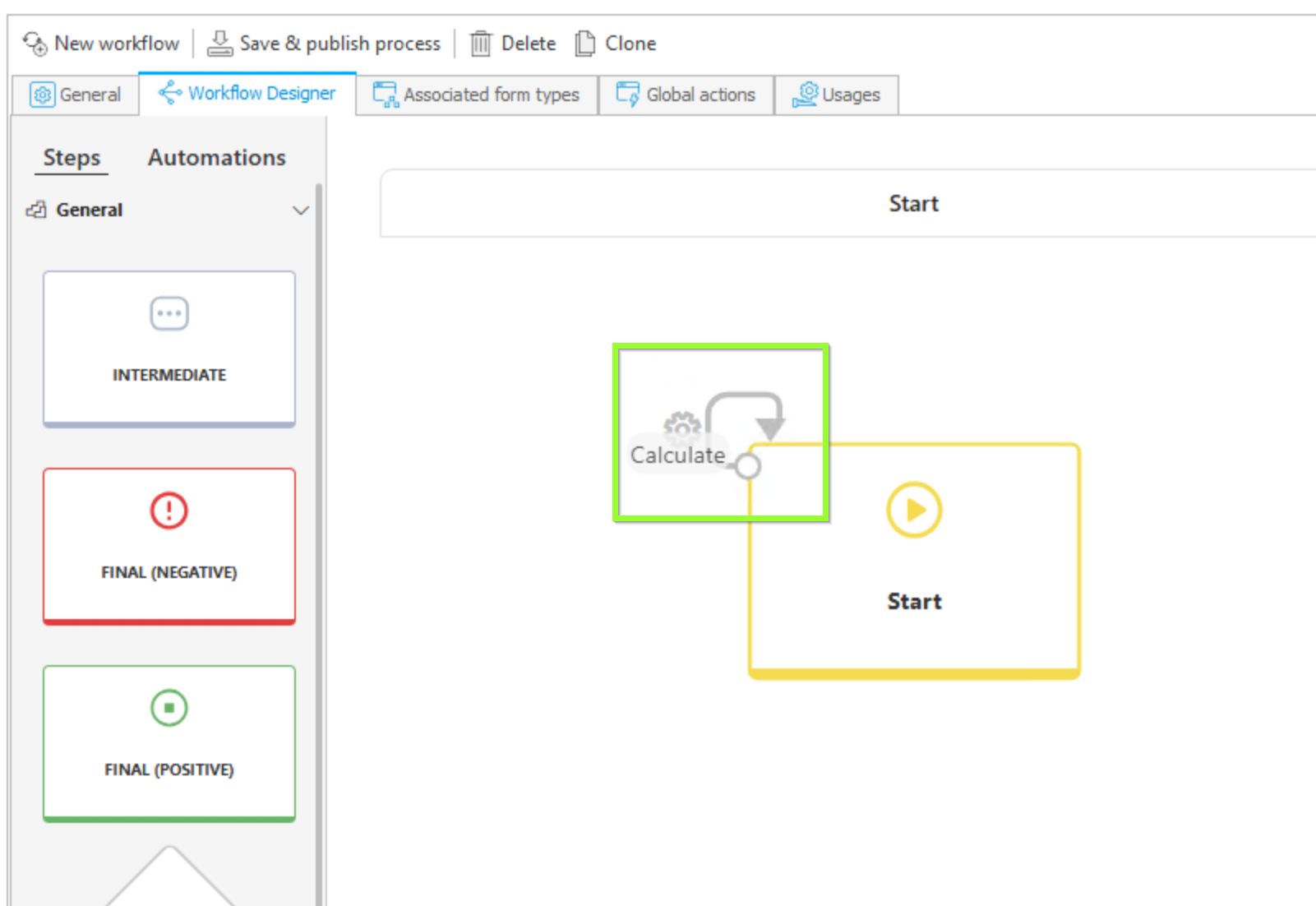
Path automation
The configuration of the path’s action just adds the above automation to the flow as follows:
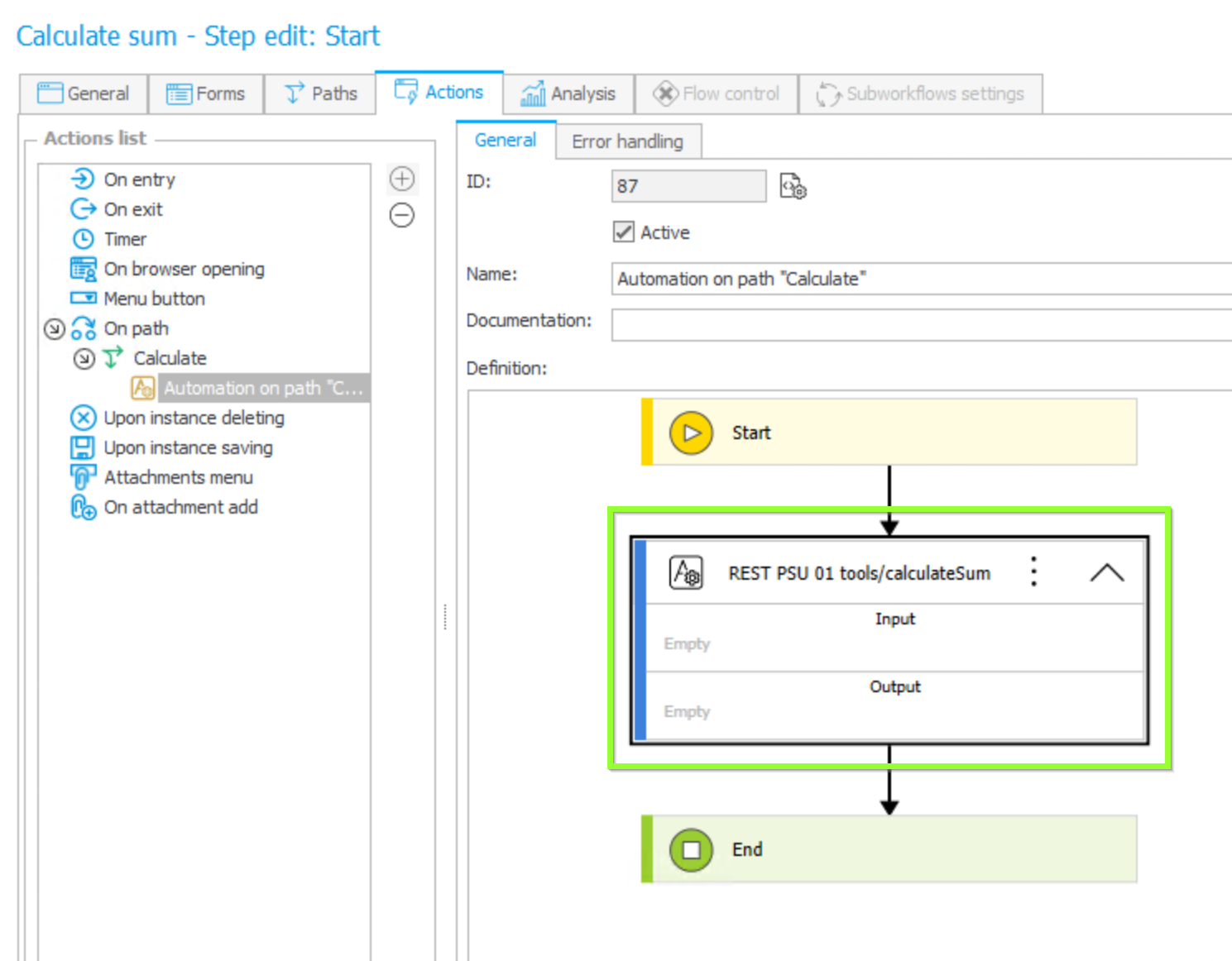
Now you are done and can start your first workflow instance and play around with values for the summand fields and click the “Calculate” button.
Demo in WEBCON portal
Summand1 and Summand2 both with values:
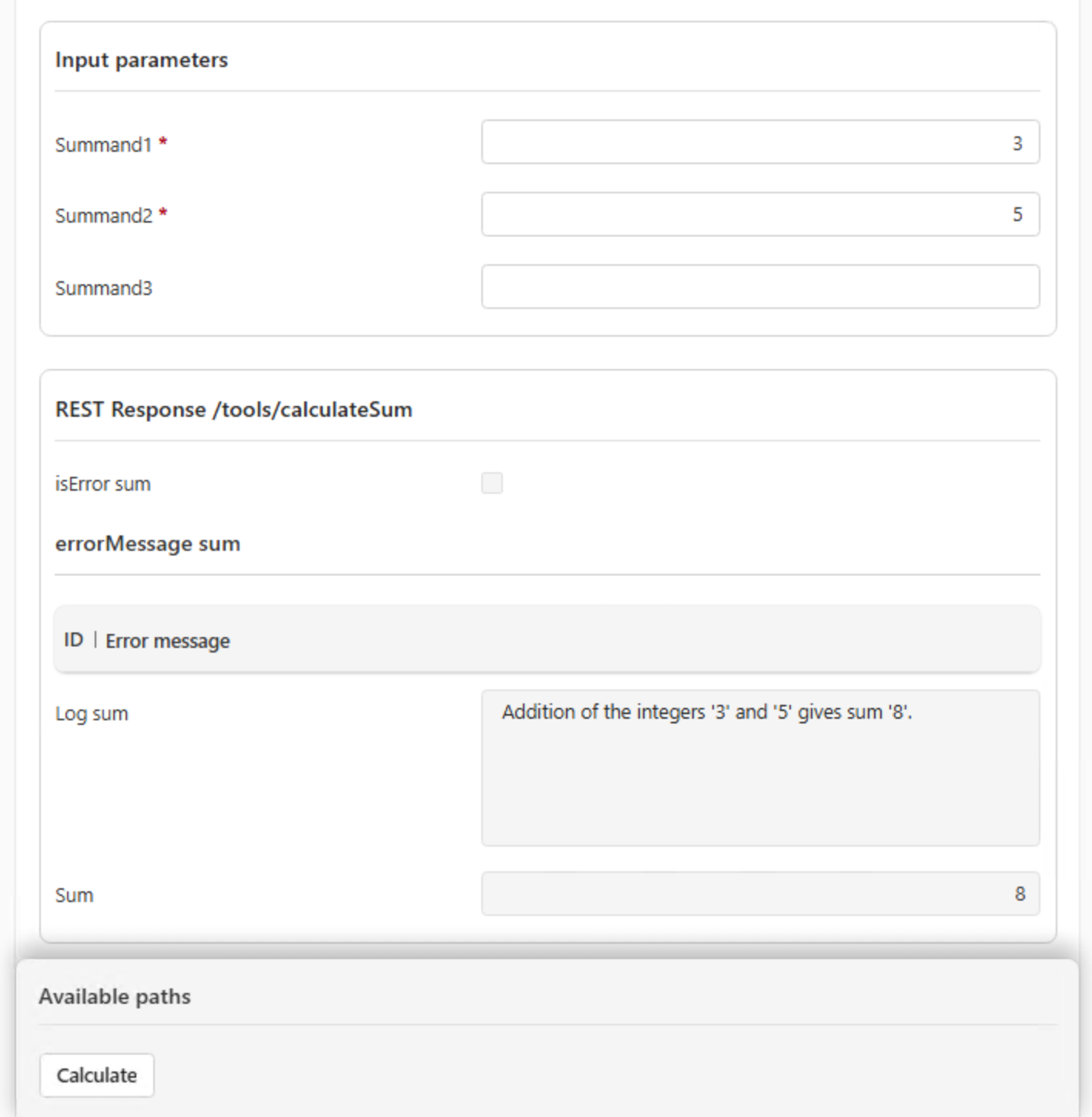
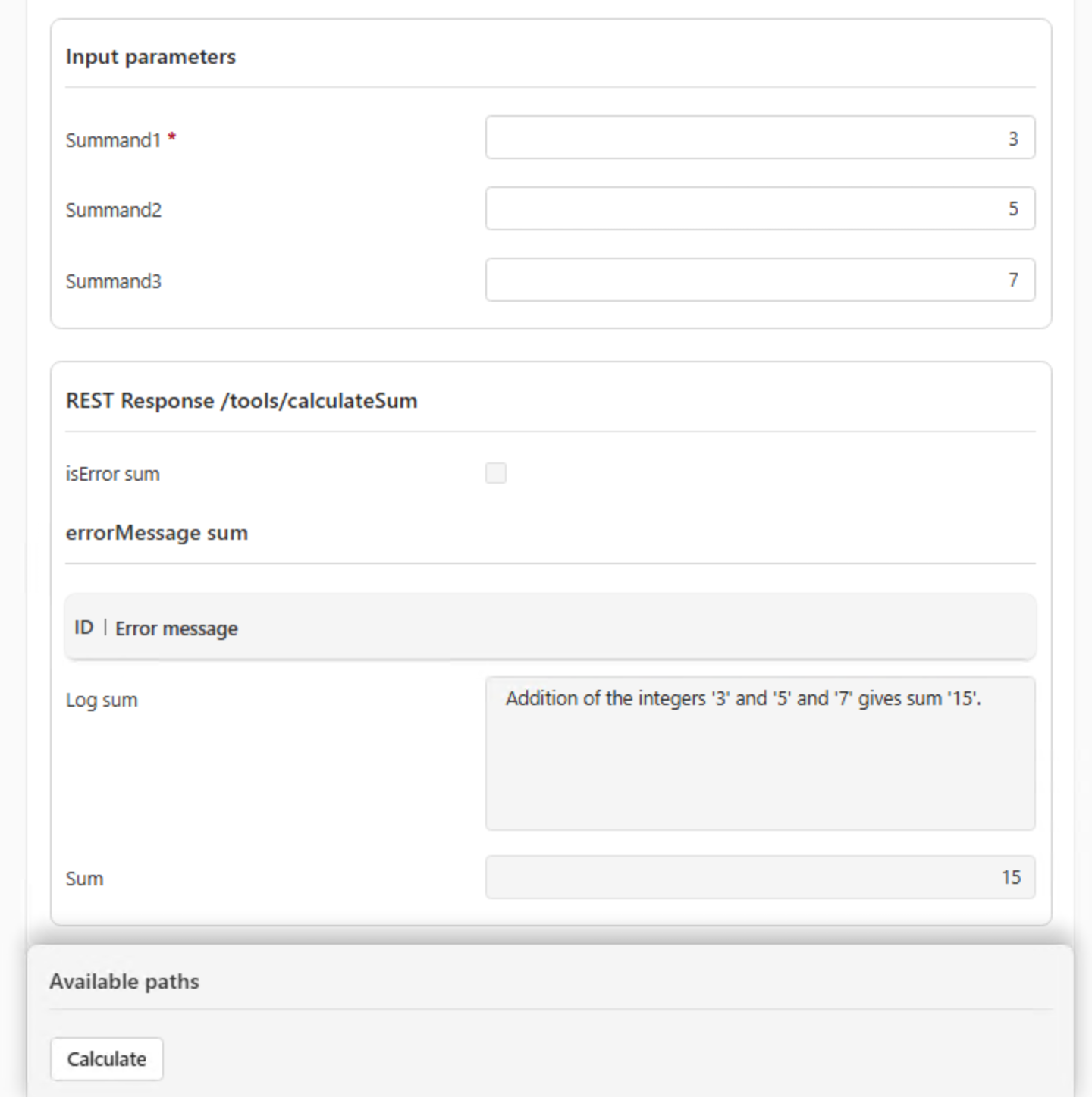
Summand1, Summand2 and optional Summand3 with values:
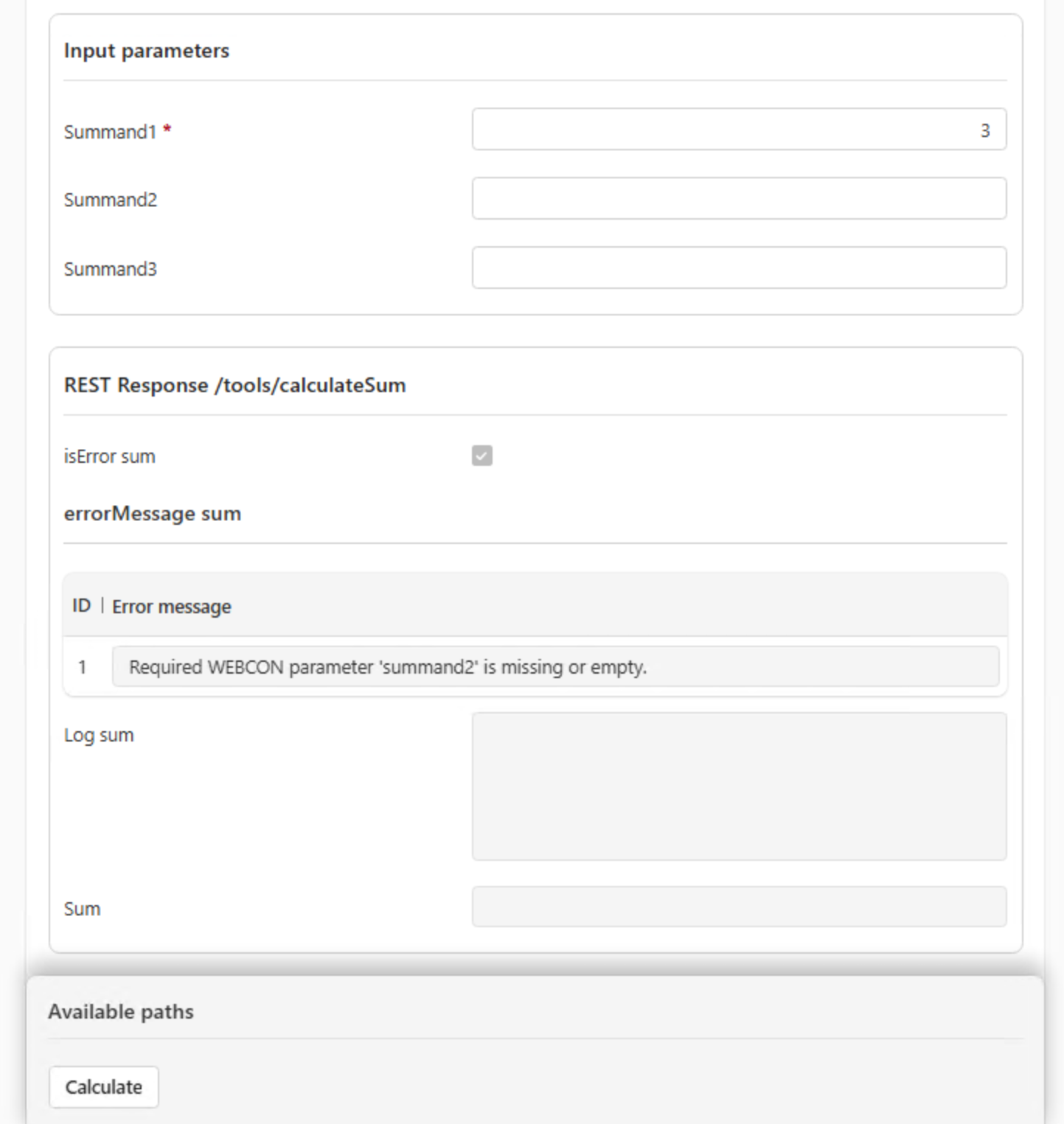
Error Case where required parameter Summand2 is empty
To illustrate this the form field needs not to be marked as required as otherwise the field could not be left empty to occure the validation error and returned messages:
To conclude this article a small summary of a futher going use case using this setup:
The technical entry process of new employees has multiple PSU endpoints. The first is used to normalize the names of the new employee to create an email address following our company naming convention. A second endpoint is used to generate the samaccountname. The third endpoint creates the AD user and sets all attributes that are entered in the WEBCON form when a new employee is added. And the fourth endpoint creates the SAP user. Right now this is done via PowerShell script that invokes a SOAP service. This will be transformed in WEBCON to a native SOAP invoke,
Happy usage of your new knowledge! Please do not hesitate to ask questions and to add comments.
Comments
Comments will be added here later.